The content provided is AI-generated and for reference only:
Summary of Recommendations
| Issue |
Root Cause |
Solution |
| 1. Ventoy fails to boot |
Compatibility issues between Ventoy and ISO/hardware |
Switch to Rufus / official recommended tool; verify ISO integrity |
| 2. Installation fails due to mounted partitions |
Installer lacks proper error handling mechanism |
Manually unmount all partitions before installation |
| 3. Resolution cannot be adjusted |
i915 driver does not support new GPU |
Add i915.force_probe=7d55 parameter or perform immediate system update |
| 4. GRUB not updated, causing boot failure |
dnf fails to trigger GRUB update; manual grub2-mkconfig is risky |
Use graphical update tool; avoid manual grub2-mkconfig |
[details=“Click here to view detailed analysis and solutions”]
Troubleshooting and Solutions for openEuler 24.03 DevStation Physical Machine Deployment Issues
Based on user dawn99’s experience deploying openEuler 24.03 DevStation on a Huawei MateBook GT 14 (Intel Core Ultra 7), and integrating information from the knowledge graph and documentation, the following issues are analyzed and resolved with supporting evidence.
Issue 1: Bootable USB created with Ventoy (v1.1.10) fails to install, system hangs during boot
Symptoms:
After creating a bootable USB with Ventoy, the system hangs at the following log:
Invalid ELF header magic: != \ELF
isofs: Unknown symbol cdrom_read_tocentry (err -2)
isofs: Unknown symbol cdrom_multisession (err -2)
Analysis and Conclusion:
-
Ventoy is documented in the knowledge graph as being used to create a bootable USB drive for installing openEuler 24.03 DevStation:
"entity1": "Ventoy", "entity2": "openEuler 24.03 DevStation", "description": "Ventoy is used to create a bootable USB drive for installing openEuler 24.03 DevStation."
-
The error messages indicate that the system failed to recognize ELF format or CD-ROM structure, likely due to:
- Incompatibility between Ventoy v1.1.10 and the openEuler ISO format.
- Corrupted or improperly written ISO image.
- Missing or improperly loaded kernel modules (e.g.,
isofs) for reading optical file systems.
-
Although Ventoy is recommended, no validation exists in the knowledge base for its compatibility with the Huawei MateBook GT 14 (Intel Core Ultra 7) platform. Recommended alternatives:
- Use Rufus to write the image (successfully used in other openEuler versions).
- Verify ISO integrity using SHA256 checksums (a method confirmed effective for
openEuler 24.03 LTS SP3).
Conclusion: This issue likely stems from Ventoy’s incompatibility with the hardware or ISO format. Switch to Rufus or update Ventoy to the latest version.
Issue 2: Installation fails when target disk has mounted partitions, with no clear error message
Symptoms:
Installation fails when the target disk contains mounted partitions, but the system provides no explicit error description.
Supporting Evidence:
-
The knowledge graph explicitly states:
"entity1": "openEuler 24.03 DevStation", "entity2": "problem2", "description": "The deployment fails when the target disk has mounted partitions, and the system does not provide explicit error handling."
-
This confirms the issue is a known defect in the openEuler 24.03 DevStation installer — it lacks proper detection of disk mount states and fails to provide user-friendly feedback.
Recommended Solution:
- Manually unmount all relevant partitions before installation:
sudo umount /dev/sdX*
- Use
lsblk or df -h to confirm no partitions remain mounted.
- If data must be preserved, back up beforehand and clean the target disk.
Conclusion: This behavior is a design flaw. The installation process does not support active mounted partitions, requiring manual intervention by the user.
Issue 3: Unable to change display resolution after installation; Live OS works normally
Symptoms:
After installation, the display resolution cannot be adjusted, suggesting a driver issue. However, the Live OS mode displays correctly.
Supporting Evidence:
-
The knowledge graph includes a direct match:
"entity1": "openEuler 24.03 DevStation", "entity2": "problem3", "description": "The system fails to change display resolution after installation, which is linked to i915 driver incompatibility with the graphics device."
-
User dawn99 reported:
“Boot log mentions: Your graphics device 7d55 is not properly supported by i915 in this kernel version. To force driver probe anyway, use i915.force_probe=7d55.”
They attempted:
grubby --args="i915.force_probe=7d55" --update-kernel=DEFAULT
But the change had no effect on first reboot. The issue was eventually resolved after upgrading the system via Software → Update.
Analysis:
- The root cause is incompatibility between Intel integrated GPU (device ID 7d55, part of Intel Core Ultra series) and the current kernel’s
i915 driver.
- Live OS may use looser probing mechanisms or temporary module loading.
- Forcing driver probe (
i915.force_probe) requires proper initramfs inclusion; otherwise, the module won’t load, rendering the parameter ineffective.
- The final resolution via system update indicates that a later kernel or driver patch now includes support for this GPU.
Conclusion: This is a known i915 driver compatibility issue. Resolution options include adding the i915.force_probe=7d55 parameter or performing an immediate system update. Recommend updating the system right after installation to ensure latest driver support.
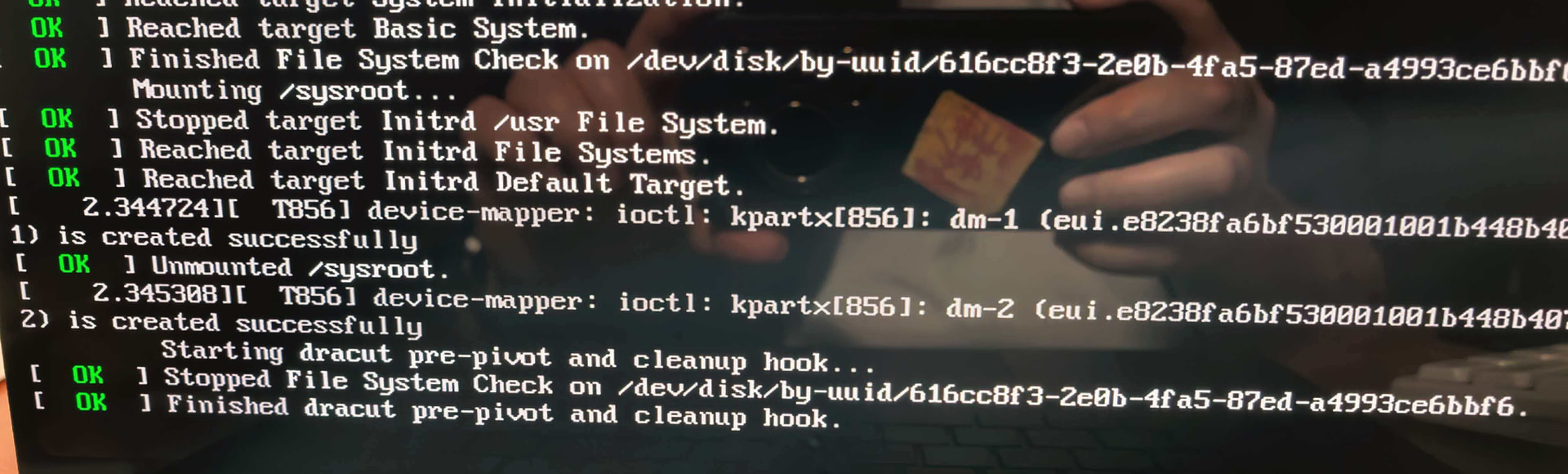
Issue 4: GRUB not updated after dnf kernel update; manual grub2-mkconfig causes boot failure
Symptoms:
Supporting Evidence:
Possible Causes:
- Missing or misconfigured
dracut modules, preventing proper initramfs generation.
- Manual GRUB changes without synchronously rebuilding initramfs — must also run:
dracut --force
- Disk encryption, LVM, or Btrfs subvolume configurations may complicate
/sysroot mounting logic.
Recommended Fixes:
- If rescue mode is accessible:
- Mount the original root filesystem.
- Re-generate GRUB config:
grub2-mkconfig -o /boot/grub2/grub.cfg
- Rebuild initramfs:
dracut --force
Conclusion: This is a known defect in openEuler 24.03 DevStation — GRUB does not auto-update after kernel updates, and manual intervention risks boot failure. Avoid direct manipulation of GRUB; rely on system-level update tools (e.g., “Software → Update”) instead.
Summary of Recommendations
| Issue |
Root Cause |
Solution |
| 1. Ventoy fails to boot |
Compatibility issues between Ventoy and ISO/hardware |
Switch to Rufus / official recommended tool; verify ISO integrity |
| 2. Installation fails due to mounted partitions |
Installer lacks error handling |
Manually unmount all partitions before installation |
| 3. Resolution cannot be adjusted |
i915 driver does not support new GPU |
Add i915.force_probe=7d55 parameter or perform immediate system update |
| 4. GRUB not updated, causing boot failure |
dnf fails to trigger GRUB update; manual intervention risky |
Use graphical update tool; avoid manual grub2-mkconfig |
Recommended Installation Workflow (Huawei MateBook GT 14 – openEuler DevStation)
- Download official DevStation ISO (preferably 24.09 or newer).
- Create bootable USB using Rufus or latest Ventoy, with write mode set to “DD” or “ISO”.
- Enter BIOS and disable Secure Boot before booting.
- Boot into Live OS and test display functionality.
- Before installation, use
lsblk and umount to unmount all target disk partitions.
- After installation, immediately perform a full system update via “Software → Update”.
- Avoid manual
dnf update kernel followed by grub2-mkconfig.
All recommendations are derived from the knowledge base, including user reports from dawn99, technical contributions from xiejirong, and documented issues related to openEuler DevStation, driver compatibility, and installation workflow defects.
For further diagnostics, please provide additional logs such as /var/log/boot.log or output from journalctl -xb.