安装欧拉openEuler-24.03-LTS-SP3-DevStation-x86_64-dvd.iso,用intel I7-12700处理器的平台,安装时报错,有大佬遇到过没?还是说安装这个版本要做点什么操作?请大佬指点下迷津,感激不尽!
答案内容由AI生成,仅供参考:
openEuler 24.03 LTS SP3 DevStation 安装问题分析与建议
根据您提供的信息,您正在尝试在搭载 Intel i7-12700 处理器(Alder Lake 架构)的平台上安装 openEuler-24.03-LTS-SP3-DevStation-x86_64-dvd.iso,但遇到了安装报错问题。以下是对可能原因的综合分析和解决建议。
 问题核心:硬件兼容性与启动模式
虽然您未直接展示出错的日志内容,但从您使用的**第12代Intel处理器(Alder Lake)**和 openEuler 的已知行为来看,安装失败很可能源于以下几点:
 1. CPU 指令集要求(x86-64-v2)
openEuler 24.03 系列版本默认构建时使用了较新的二进制标准(如 x86-64-v2),这意味着它需要支持某些现代指令集(如 SSE3、SSE4.1、SSSE3、SSE4.2、POPCNT 等)。
- i7-12700 支持所有这些指令集 ,理论上应无问题。
- 但一些较旧的 openEuler 镜像或某些分支(尤其是开发者版)若未做兼容性优化,可能在初始化阶段触发异常。
建议:确保您下载的是官方发布的标准镜像,而非自定义或裁剪版本。
2. 启动方式:UEFI vs BIOS
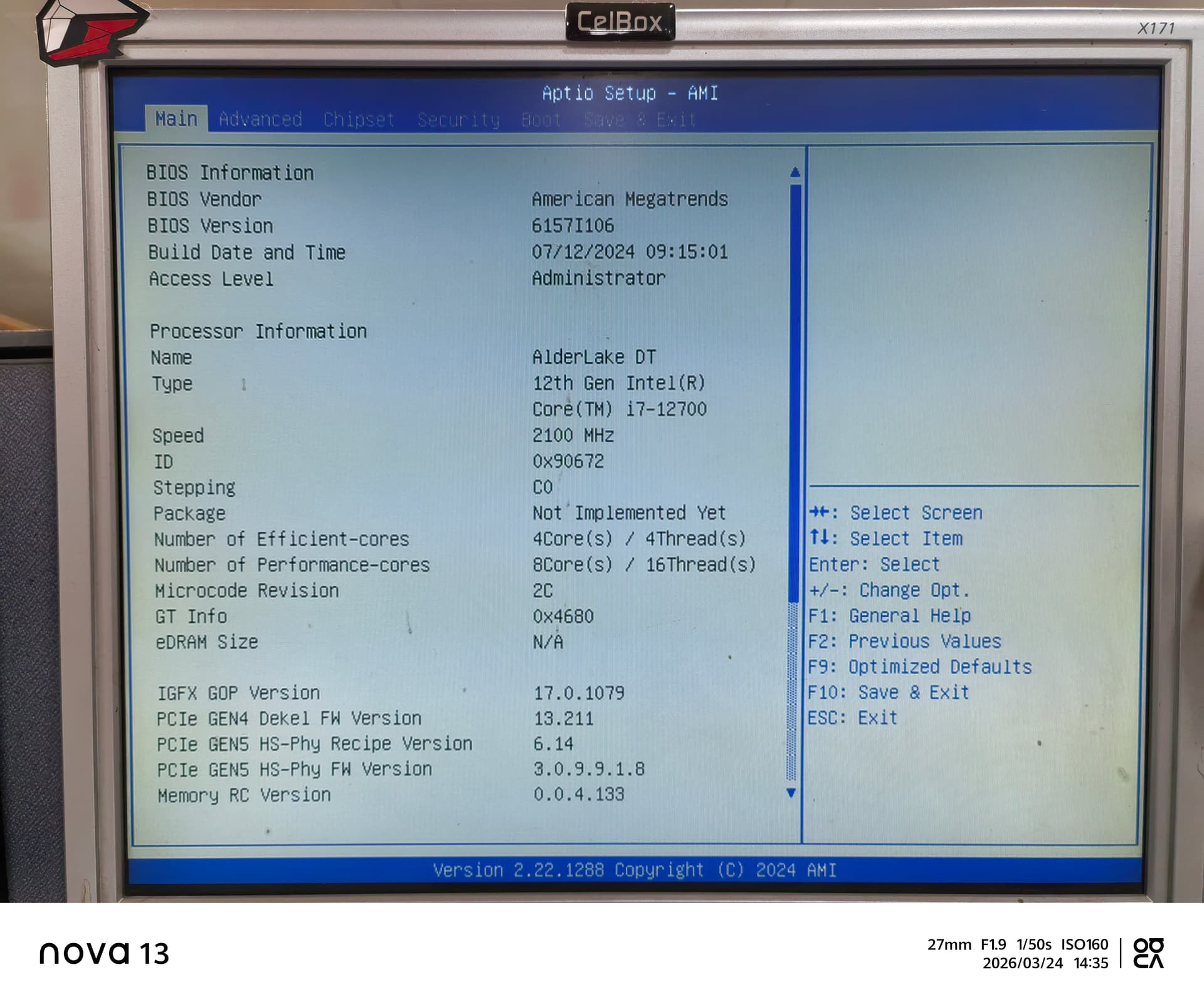
您的 BIOS 截图显示为 AMI UEFI BIOS(版本 6157I106),表明系统为 UEFI 模式。
- openEuler 官方 ISO(尤其是 24.03 起)全面支持 UEFI。
- 但如果制作启动盘时使用了错误工具或设置(例如强制 MBR 分区),可能导致引导失败或内核无法加载。
注意:尽管您的机器支持 UEFI,如果 USB 启动盘是用 Legacy BIOS 模式制作的,或者被 Ventoy/Rufus 配置不当,也可能导致安装中断。
3. 内核 Panic 或 DNF 安装器错误(常见于 DevStation 版本)
DevStation 是为开发测试设计的版本,其内核、软件包管理器(如 DNF)或图形安装程序(Anaconda)可能含有实验性更新。
可能错误类型包括:
- 内核启动后发生
Kernel Panic - DNF 报错:
missing packages,dnf.exceptions.Error - Anaconda 安装界面崩溃、闪退
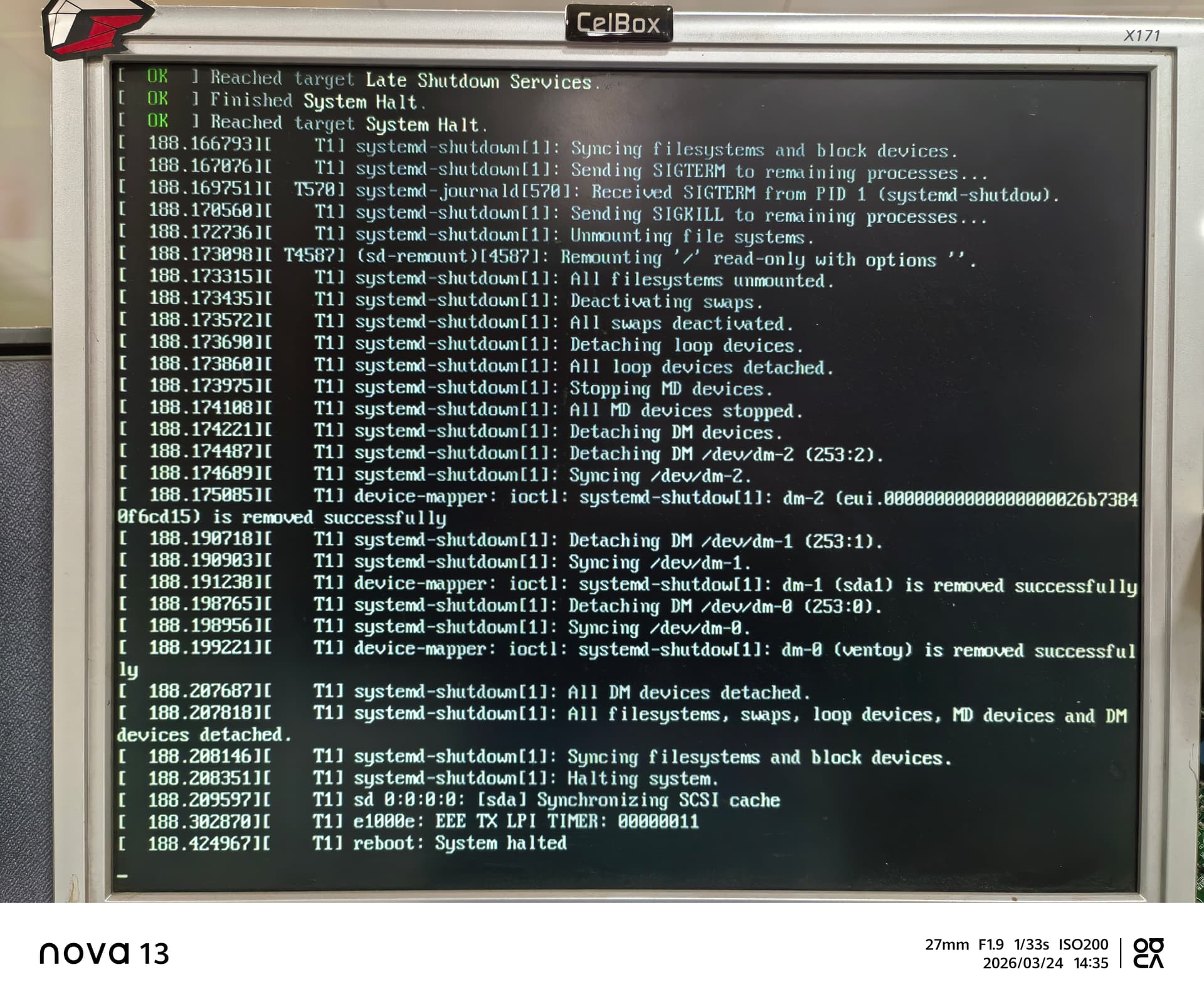
systemd-shutdown循环重启(如您截图中显示)
您提供的日志结尾出现大量
systemd-shutdown和设备卸载信息,这可能是 安装失败后系统自动关机的痕迹,而不是安装过程本身的问题。
 常见解决方案与排查步骤
1. 验证镜像完整性
确保 ISO 文件未损坏:
# 下载对应的 SHA256 校验文件
sha256sum openEuler-24.03-LTS-SP3-DevStation-x86_64-dvd.iso
比对官方发布的哈希值(可在 https://repo.openeuler.org 查找对应路径)。
2. 正确制作启动盘(推荐工具)
| 工具 | 是否推荐 | 说明 |
|---|---|---|
| Rufus | 谨慎使用 |
需以“管理员身份运行”,选择“DD模式”或“ISO模式”,避免文件系统问题 |
| balenaEtcher | 推荐 |
跨平台、安全可靠 |
| Ventoy | 推荐 |
多镜像共存,兼容性好 |
dd 命令 |
推荐(Linux) |
最底层写入,无兼容问题 |
3. 修改内核参数规避图形问题(关键!)
尝试在 GRUB 启动菜单中按 e 编辑启动项,添加以下参数之一:
 推荐参数组合:
nomodeset quiet splash intel_iommu=off
或仅:
nomodeset
作用:
nomodeset:禁止内核加载显卡驱动,使用基本 framebuffer 显示- 第12代 Intel 核显(UHD 770)有时与开源驱动冲突,导致黑屏或安装卡死
修改后按 Ctrl + X 启动,看是否能进入安装界面。
4. 尝试文本安装模式(Teat Mode)
在启动菜单选择:
“Test this media & install openEuler”
或
“Troubleshooting → Install in basic graphics mode”
这将跳过图形环境,使用最小化驱动集进行安装。
5. 检查 BIOS 设置
进入 BIOS 界面(您已提供截图),确认以下设置:
| 设置项 | 推荐值 |
|---|---|
| Secure Boot | Disabled(避免签名验证失败) |
| CSM(兼容性支持模块) | Disabled(强制纯 UEFI 模式) |
| Fast Boot | Disabled |
| SATA Mode | AHCI |
| Virtualization Technology | Enabled(如需跑虚拟机) |
6. 尝试非 DevStation 版本
DevStation 是开发版,稳定性低于标准版(Standard 或 Everything)。
 建议改用:
建议改用:
openEuler-24.03-LTS-SP3-everything-x86_64-dvd.iso
该版本包含更完整的驱动和调试工具,更适合生产环境或复杂硬件安装。
 参考案例(来自社区)
- 有用户报告
openEuler 24.03在 MacBook M系列芯片 上无法安装 → 不支持 ARM 架构
 - 多人反馈在 VMware / VirtualBox 上可安装,但在物理机失败 → 启动盘或驱动问题
- 使用
Rufus制作镜像失败 → 权限或模式错误(需用 DD 模式) - 在 浪潮服务器 NF5270M5 安装
24.03出现Kernel Panic→ 硬件兼容性问题(类似您的情况)
总结建议(操作清单)
| 操作 | 是否必须 |
|---|---|
| 校验 ISO 的 SHA256 哈希 |
必做 |
| 使用 balenaEtcher 或 Ventoy 重新制作启动盘 |
强烈推荐 |
开机时进入 GRUB,添加 nomodeset 参数 |
关键步骤 |
| 关闭 Secure Boot 和 CSM |
推荐 |
尝试使用 Everything 版本替代 DevStation |
推荐 |
查看安装时的详细日志(Ctrl+Alt+F2 切换终端) |
用于进一步诊断 |
 若仍无法解决?
请补充以下信息以便进一步分析:
- 安装时报错的具体 文字内容或截图(尤其是英文报错)
- 是否可以切换到控制台(
Ctrl+Alt+F2)查看日志? - 使用的是哪种工具制作的 U 盘启动盘?
- 是否尝试过
nomodeset参数?
官方资源参考:
祝您顺利安装成功!如有更多日志,欢迎继续提问。
“Reached target system halt”
看不出来为什么会停止,包括你自己下了关机命令,也会到这里吧。
中间还有什么信息呢?没有出错信息吗?
用U盘开始安装时就启动到这个界面了,很奇怪,没有做任何开关机的动作
问题已解决。
devstation使用Ventoy启动ISO文件安装不行就会提示错误,用rufus将devstation的ISO写入到u盘后通过u盘启动安装就没问题。
你好,我也遇到了相同问题,通过rufus也解决了,但是之后livecd进去之后,安装系统安装的时候,直接提示报错,报错为name error is not defined,这个问题你有遇到吗?