Installing Open Euler 24.03 full version with external KVM display overclocking. The KVM display works normally during server boot, but after booting, it shows overclocking. I’ve modified the grub configuration file, saved it successfully, but after reboot, it still outputs high resolution, suggesting the configuration file was modified incorrectly. Does anyone know which configuration file path should be modified?
What is the specific procedure for modifying the GRUB configuration file?
If you modify GRUB_CMDLINE_LINUX, you can run the cat /proc/cmdline command to check whether the change has taken effect.
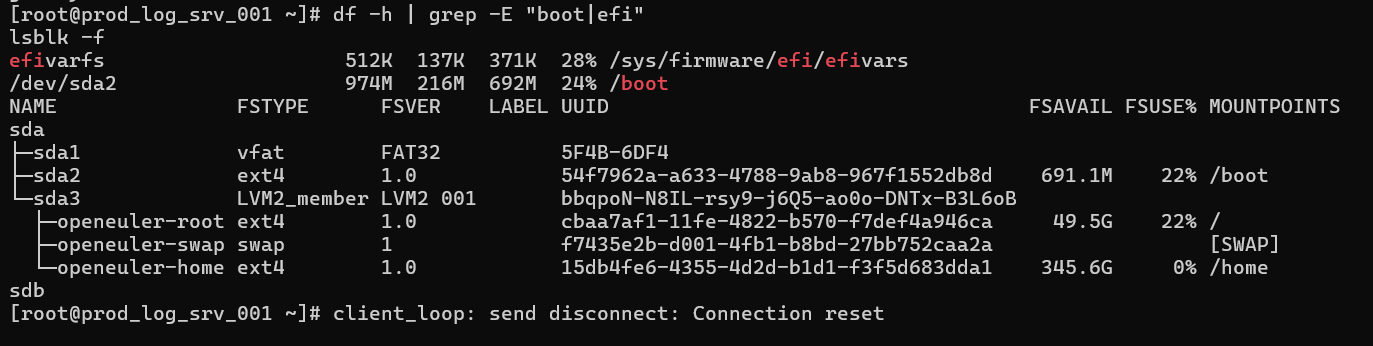
Your boot partition at /dev/sda2 appears to already be mounted, otherwise the system wouldn’t be able to boot.
However, if /dev/sda1 is the /boot/efi partition, then it’s not mounted.
Try the following steps:
# Modify the configuration file by appending parameters to GRUB_CMDLINE_LINUX
$ vim /etc/default/grub
# Regenerate grub.cfg (for UEFI boot)
$ cp /boot/efi/EFI/openEuler/grub.cfg /boot/efi/EFI/openEuler/grub.cfg.bak
$ grub2-mkconfig -o /boot/efi/EFI/openEuler/grub.cfg
# Regenerate grub.cfg (for BIOS boot)
$ cp /boot/grub2/grub.cfg /boot/grub2/grub.cfg.bak
$ grub2-mkconfig -o /boot/grub2/grub.cfg
# Verify that the new grub.cfg includes the added parameters by checking the args line in the output
$ grubby --info=DEFAULT
# If grub.cfg takes effect, reboot the machine and verify the changes
$ cat /proc/cmdline
This issue is likely related to the GPU driver. After signal conversion, the display isn’t working properly.
I experienced the same problem before when using an HDMI-to-VGA adapter with a KVM switch that splits multiple inputs to a single monitor. The graphical interface fails to appear after the login screen or once the user logs in.
The solution that worked for me was to force display output first, followed by a complete reinstallation of the NVIDIA driver. My GPU is a GTX 750.
Primary Solution: Force Signal Output Activation
Run xrandr in the terminal to identify your monitor’s name (e.g., HDMI-1), then activate it with: xrandr --output HDMI-1 --auto. If that doesn’t work, try adding --rate 60 to lower the refresh rate.
Note: This is a temporary fix. After confirming it works, consider creating a startup script or adding the command to
~/.xprofile.
Critical Hardware Checklist
- Ensure you’re using an active converter: Many display issues occur due to passive adapters. Replace with an active converter that has its own chip, usually featuring a Micro-USB power port.
- Check connections and cables: Make sure HDMI and VGA cables are securely connected. Try a different HDMI cable if possible. Also, manually switch the input source on your monitor to the correct VGA setting.
Advanced Troubleshooting and Fixes
Check and reinstall GPU drivers: Run lspci | grep VGAto confirm your GPU model. If you’re using an NVIDIA GPU, newer drivers include an option to disable open-source drivers—follow the prompts to install the correct proprietary driver. For specific models mentioned on the openEuler forum, try the command:/sys/kernel/debug/dri/0/i915_display_infoto force display wake-up.
Adjust kernel boot parameters: If the screen stays black throughout boot, edit the boot entry in the GRUB menu. Add video=HDMI-A-1:Dornomodesetto thelinuxline to temporarily disable kernel mode setting. Be aware:nomodesetmight affect graphics performance in UKUI.
Additional Debugging Steps
- Use kernel boot parameters permanently: Edit
/etc/default/grub, and addvideo=HDMI-A-1:DtoGRUB_CMDLINE_LINUX. Then runsudo update-grubto update the bootloader. - Special handling for dual GPU systems: If you’re using a dual-GPU laptop and previous steps don’t help, enter BIOS and try temporarily disabling the dedicated GPU to force output through the integrated graphics. Check if this improves performance.
Follow these steps in order—from simple to complex. If none works, feel free to ask for help in the openEuler community (e.g., comment under Issue #I5MK0X). If you’d like help identifying where the failure occurs, just let me know—I’ll assist with deeper diagnosis.
The “overclocking” here likely refers to a KVM or monitor warning that the input signal exceeds the supported range, not CPU overclocking. However, since the display works normally at the beginning of boot but fails later, we need to determine whether the display mode switch occurs when the kernel takes over display control, or when the graphical login interface appears.
The /proc/cmdline output you provided does not include display-related parameters such as video=. However, this depends on the specific changes made: if you modified GRUB_GFXMODE or GRUB_GFXPAYLOAD_LINUX in /etc/default/grub, these settings won’t appear as kernel parameters in /proc/cmdline, and they don’t guarantee that the GRUB resolution will be retained after system boot.
The screenshot also shows that the system is currently booting in UEFI mode, /boot is mounted, and sda1 is an unmounted FAT32 partition. It might be the EFI system partition, but this alone isn’t enough to confirm that the configuration was placed incorrectly. The fact that the system boots successfully doesn’t mean the EFI partition is necessarily mounted after boot.
Could you please provide the following information? Let’s first check whether the configuration change took effect and whether the display mode is compatible, to avoid further compounding the configuration:
- Which file was modified, what configuration lines were changed, and what command was executed after the change? Please paste the exact text.
- The KVM model, the connection interface from the server to the KVM, and a photo of the screen’s “overclocking” warning. If the warning includes frequency values, please include them.
- Does the issue occur during the boot log phase, or when the graphical login interface appears? Is a desktop environment currently installed?
Additionally, the kernel version shown in the screenshot includes oe2403sp4. Please verify the exact system version using cat /etc/openEuler-release.
For now, we don’t recommend reinstalling the graphics driver. xrandr requires an active X graphical session, and video=HDMI-A-1:D only forces enabling a specific output without restricting resolution or refresh rate. It cannot be directly used as a solution for “overclocking” issues.