openEuler 安装 MySQL
1 通过 rpm -qa | grep mariadb 命令查看 MariaDB 的安装包。
[root@localhost ~]# rpm -qa | grep mariadb
mariadb-connector-c-3.3.8-2.oe2403sp1.x86_64
[root@localhost ~]#
2 通过 rpm -e xxx --nodeps 命令卸载 MariaDB。
[root@localhost ~]# rpm -e mariadb-connector-c-3.3.8-2.oe2403sp1.x86_64 --nodeps
再次使用 rpm -qa | grep mariadb 命令检查 MariaDB 安装包
[root@localhost ~]# rpm -qa | grep mariadb
[root@localhost ~]#
说明已无 MariaDB 安装包

3 为避免安装失败,检查是否存在 MySQL 相关文件,如有则全部删除。
[root@localhost ~]# rpm -qa | grep mysql
若有结果,则使用 rpm -e --nodeps 卸载
查找 MySQL 文件
[root@localhost ~]# find / -name mysql
/usr/share/bash-completion/completions/mysql
/var/lib/selinux/targeted/active/modules/100/mysql
[root@localhost ~]#
[root@localhost ~]# rm -rf /usr/share/bash-completion/completions/mysql
[root@localhost ~]# rm -rf /var/lib/selinux/targeted/active/modules/100/mysql
4 下载 MySQL 软件包。
[root@localhost ~]# wget https://cdn.mysql.com/archives/mysql-8.4/mysql-8.4.2-1.el9.x86_64.rpm-bundle.tar
–2025-03-11 11:00:58-- https://cdn.mysql.com/archives/mysql-8.4/mysql-8.4.2-1.el9.x86_64.rpm-bundle.tar
正在解析主机 cdn.mysql.com (cdn.mysql.com)… 23.202.138.125, 2600:1413:5000:98f::1d68, 2600:1413:5000:988::1d68
正在连接 cdn.mysql.com (cdn.mysql.com)|23.202.138.125|:443… 已连接。
已发出 HTTP 请求,正在等待回应… 200 OK
长度:887470080 (846M) [application/x-tar]
正在保存至: “mysql-8.4.2-1.el9.x86_64.rpm-bundle.tar”
9.x86_64.rpm-bundle.tar 1%[> ] 16.00M 1.56MB/s 剩余 9m 1s
5 创建目录并解压 MySQL 软件包至该目录。
[root@localhost ~]# mkdir mysql
[root@localhost ~]# ls
mysql mysql-8.4.2-1.el9.x86_64.rpm-bundle.tar

[root@localhost ~]# tar -xvf mysql-8.4.2-1.el9.x86_64.rpm-bundle.tar -C mysql/
[root@localhost ~]# cd mysql/
[root@localhost mysql]# ls
mysql-community-client-8.4.2-1.el9.x86_64.rpm mysql-community-libs-compat-8.4.2-1.el9.x86_64.rpm
mysql-community-client-debuginfo-8.4.2-1.el9.x86_64.rpm mysql-community-libs-compat-debuginfo-8.4.2-1.el9.x86_64.rpm
mysql-community-client-plugins-8.4.2-1.el9.x86_64.rpm mysql-community-libs-debuginfo-8.4.2-1.el9.x86_64.rpm
mysql-community-client-plugins-debuginfo-8.4.2-1.el9.x86_64.rpm mysql-community-server-8.4.2-1.el9.x86_64.rpm
mysql-community-common-8.4.2-1.el9.x86_64.rpm mysql-community-server-debug-8.4.2-1.el9.x86_64.rpm
mysql-community-debuginfo-8.4.2-1.el9.x86_64.rpm mysql-community-server-debug-debuginfo-8.4.2-1.el9.x86_64.rpm
mysql-community-debugsource-8.4.2-1.el9.x86_64.rpm mysql-community-server-debuginfo-8.4.2-1.el9.x86_64.rpm
mysql-community-devel-8.4.2-1.el9.x86_64.rpm mysql-community-test-8.4.2-1.el9.x86_64.rpm
mysql-community-icu-data-files-8.4.2-1.el9.x86_64.rpm mysql-community-test-debuginfo-8.4.2-1.el9.x86_64.rpm
mysql-community-libs-8.4.2-1.el9.x86_64.rpm

本步骤重点为安装,无需调试,删除所有 debug 相关安装包
[root@localhost mysql]# rm -rf debug
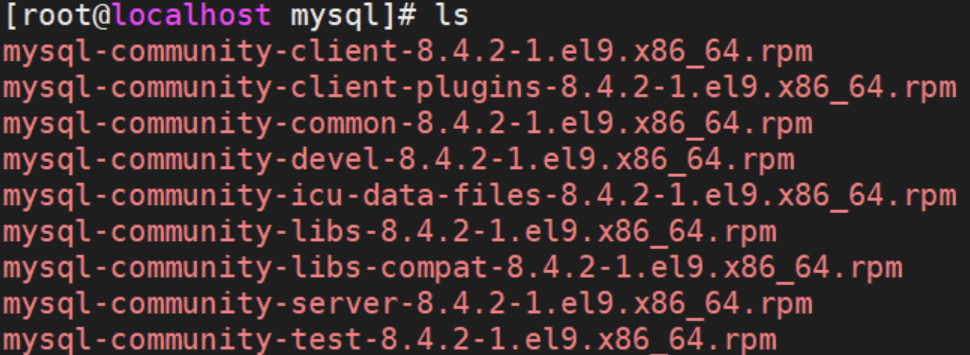
[root@localhost mysql]# ls
mysql-community-client-8.4.2-1.el9.x86_64.rpm mysql-community-libs-8.4.2-1.el9.x86_64.rpm
mysql-community-client-plugins-8.4.2-1.el9.x86_64.rpm mysql-community-libs-compat-8.4.2-1.el9.x86_64.rpm
mysql-community-common-8.4.2-1.el9.x86_64.rpm mysql-community-server-8.4.2-1.el9.x86_64.rpm
mysql-community-devel-8.4.2-1.el9.x86_64.rpm mysql-community-test-8.4.2-1.el9.x86_64.rpm
mysql-community-icu-data-files-8.4.2-1.el9.x86_64.rpm
6 安装 MySQL。
[root@localhost mysql]# rpm -ivh *.rpm --force --nodeps
警告:mysql-community-client-8.4.2-1.el9.x86_64.rpm: 头 V4 RSA/SHA256 Signature, 密钥 ID a8d3785c: NOKEY
Verifying… ################################# [100%]
准备中… ################################# [100%]
正在升级/安装…
1:mysql-community-common-8.4.2-1.el################################# [ 11%]
2:mysql-community-client-plugins-8.################################# [ 22%]
3:mysql-community-libs-8.4.2-1.el9 ################################# [ 33%]
4:mysql-community-client-8.4.2-1.el################################# [ 44%]
5:mysql-community-icu-data-files-8.################################# [ 56%]
6:mysql-community-server-8.4.2-1.el################################# [ 67%]
7:mysql-community-test-8.4.2-1.el9 ################################# [ 78%]
8:mysql-community-devel-8.4.2-1.el9################################# [ 89%]
9:mysql-community-libs-compat-8.4.2################################# [100%]
/usr/lib/tmpfiles.d/dbus.conf:13: Line references path below legacy directory /var/run/, updating /var/run/dbus/containers → /run/dbus/containers; please update the tmpfiles.d/ drop-in file accordingly.
7 启动 MySQL 服务,并设置开机自启。
[root@localhost mysql]# systemctl start mysqld
[root@localhost mysql]# systemctl enable mysqld

[root@localhost mysql]# 查看是否启动
[root@localhost mysql]# ps -ef | grep mysql
mysql 5108 1 0 15:05 ? 00:00:01 /usr/sbin/mysqld
出现 mysqld 进程即表示已成功启动

8 通过 cat /var/log/mysqld.log | grep password 命令查看数据库初始密码。
[root@localhost mysql]# cat /var/log/mysqld.log | grep password
2025-03-11T07:05:03.797360Z 6 [Note] [MY-010454] [Server] A temporary password is generated for root@localhost: _Qeq&,Nl5-V
[root@localhost mysql]#
本例中,root@localhost: 后面的 _Qeq&,Nl5-V 即为初始密码。

9 使用初始密码登录 MySQL。
[root@localhost mysql]# mysql -uroot -p
Enter password:
Welcome to the MySQL monitor. Commands end with ; or \g.
Your MySQL connection id is 8
Server version: 8.4.2
Copyright (c) 2000, 2024, Oracle and/or its affiliates.
Oracle is a registered trademark of Oracle Corporation and/or its affiliates.
Other names may be trademarks of their respective owners.
Type ‘help;’ or ‘\h’ for help. Type ‘\c’ to clear the current input statement.
mysql>
10 通过 ALTER USER 'root'@'localhost' IDENTIFIED BY 'xxxxxxx'; 命令修改登录密码。
mysql> ALTER USER ‘root’@‘localhost’ IDENTIFIED BY ‘Root@123456’;
Query OK, 0 rows affected (0.01 sec)
mysql> flush privileges;
Query OK, 0 rows affected (0.01 sec)
mysql>
本例中将密码修改为 Root@123456,请根据实际需求设置密码。
如需设置简单密码,可降低密码策略,查看当前密码策略:
mysql> SHOW VARIABLES LIKE ‘validate_password%’;
±------------------------------------------------±-------+
| Variable_name | Value |
±------------------------------------------------±-------+
| validate_password.changed_characters_percentage | 0 |
| validate_password.check_user_name | ON |
| validate_password.dictionary_file | |
| validate_password.length | 8 |
| validate_password.mixed_case_count | 1 |
| validate_password.number_count | 1 |
| validate_password.policy | MEDIUM |
| validate_password.special_char_count | 1 |
±------------------------------------------------±-------+
8 rows in set (0.01 sec)
使用 set global 命令设置相应值。11 Exit MySQL using the exit; command, then log in again with the new password.
mysql> exit;
Bye
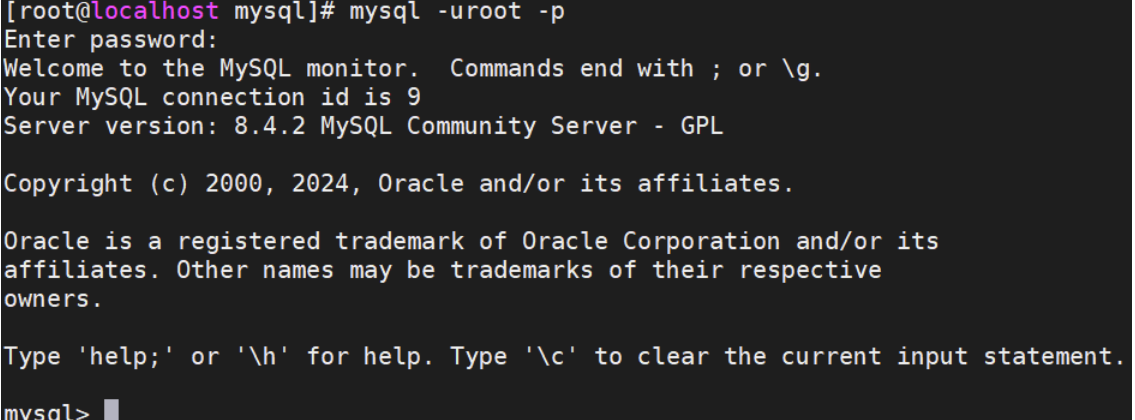
[root@localhost mysql]# mysql -uroot -p
Enter password:
Welcome to the MySQL monitor. Commands end with ; or \g.
Your MySQL connection id is 16
Server version: 8.4.2 MySQL Community Server - GPL
Copyright (c) 2000, 2024, Oracle and/or its affiliates.
Oracle is a registered trademark of Oracle Corporation and/or its
affiliates. Other names may be trademarks of their respective
owners.
Type ‘help;’ or ‘\h’ for help. Type ‘\c’ to clear the current input statement.
mysql>
12 Use the following commands to grant remote access permissions:
CREATE USER ‘root’@‘%’ IDENTIFIED WITH caching_sha2_password BY ‘Root@123456’;
GRANT ALL PRIVILEGES ON . TO ‘root’@‘%’ WITH GRANT OPTION;
FLUSH PRIVILEGES;
Note: The remote password here is set as ‘Root@123456’ for demonstration purposes. Please set it according to your actual requirements.
mysql> CREATE USER ‘root’@‘%’ IDENTIFIED WITH caching_sha2_password BY ‘Root@123456’;
Query OK, 0 rows affected (0.00 sec)
mysql> GRANT ALL PRIVILEGES ON . TO ‘root’@‘%’ WITH GRANT OPTION;
Query OK, 0 rows affected (0.01 sec)
mysql> FLUSH PRIVILEGES;
Query OK, 0 rows affected (0.00 sec)
13 Verify remote connection login.
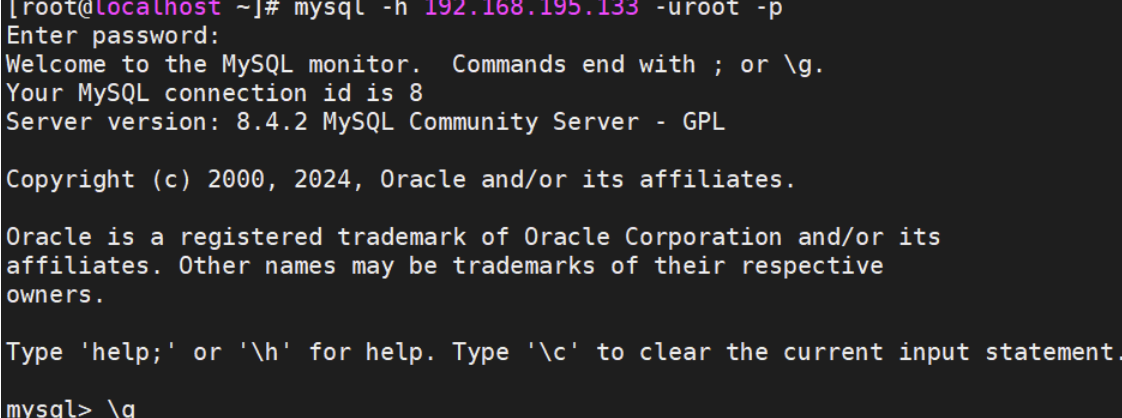
[root@localhost mysql]# mysql -h 10.90.100.150 -uroot -p
Enter password:
Welcome to the MySQL monitor. Commands end with ; or \g.
Your MySQL connection id is 29
Server version: 8.4.2 MySQL Community Server - GPL
Copyright (c) 2000, 2024, Oracle and/or its affiliates.
Oracle is a registered trademark of Oracle Corporation and/or its
affiliates. Other names may be trademarks of their respective
owners.
Type ‘help;’ or ‘\h’ for help. Type ‘\c’ to clear the current input statement.
mysql>
The IP address following -h is the host IP address where the MySQL service is running. If remote connection fails across hosts, check the firewall settings.
At this point, MySQL 8.4 has been successfully installed. You may now delete the .tar file and the extracted installation package.
[root@localhost ~]# ls
anaconda-ks.cfg mysql mysql-8.4.2-1.el9.x86_64.rpm-bundle.tar

[root@localhost ~]# rm -rf mysql mysql-8.4.2-1.el9.x86_64.rpm-bundle.tar
[root@localhost ~]#

Block quote